Notice: Function _load_textdomain_just_in_time was called incorrectly. Translation loading for the custom-facebook-feed domain was triggered too early. This is usually an indicator for some code in the plugin or theme running too early. Translations should be loaded at the init action or later. Please see Debugging in WordPress for more information. (This message was added in version 6.7.0.) in /export/NP/L/staging.web.faa.illinois.edu/secure/illinois-faa/web/wp/wp-includes/functions.php on line 6121

Notice: Function _load_textdomain_just_in_time was called incorrectly. Translation loading for the acfe domain was triggered too early. This is usually an indicator for some code in the plugin or theme running too early. Translations should be loaded at the init action or later. Please see Debugging in WordPress for more information. (This message was added in version 6.7.0.) in /export/NP/L/staging.web.faa.illinois.edu/secure/illinois-faa/web/wp/wp-includes/functions.php on line 6121
Tutorial - Scanning Documents and Drawings with the Epson Flatbed Scanners (Reflective) - School of Art & Design
Skip over sidebar nav to the content section

Tutorial – Scanning Documents and Drawings with the Epson Flatbed Scanners (Reflective)

Scanning Documents and Drawings

  1. Open the Epson Scan 2 software (in the Applications folder).
  2. Place the document face side down on the scanning bed.
  3. Make sure the white covering board is installed in the upper part of the scanner.
  4. For Mode choose Photo Mode.
  5. For Document Source choose Scanner Glass. For Document Type choose Reflective. Set your Image Type to 24-bit Color.
  6. Setting your resolution will depend on what you want to use the scan for. If the scan is only for e-mail and web usage a scan at 96 dpi should be sufficient. For a printed image the scan should be at a minimum of 300 dpi. If you are scanning to print at a larger size, adjust your resolution accordingly.  Alternatively, after you scan your preview, you can check the Output Image box on the preview panel and adjust the zoom setting to select you target size for your desired output.
  7. Click Preview.
  8. Drag a box around the area that you want to scan in the Preview window. The scanner will only scan the area you indicate.
  9. Set your image format, file name, and folder, and click Scan.
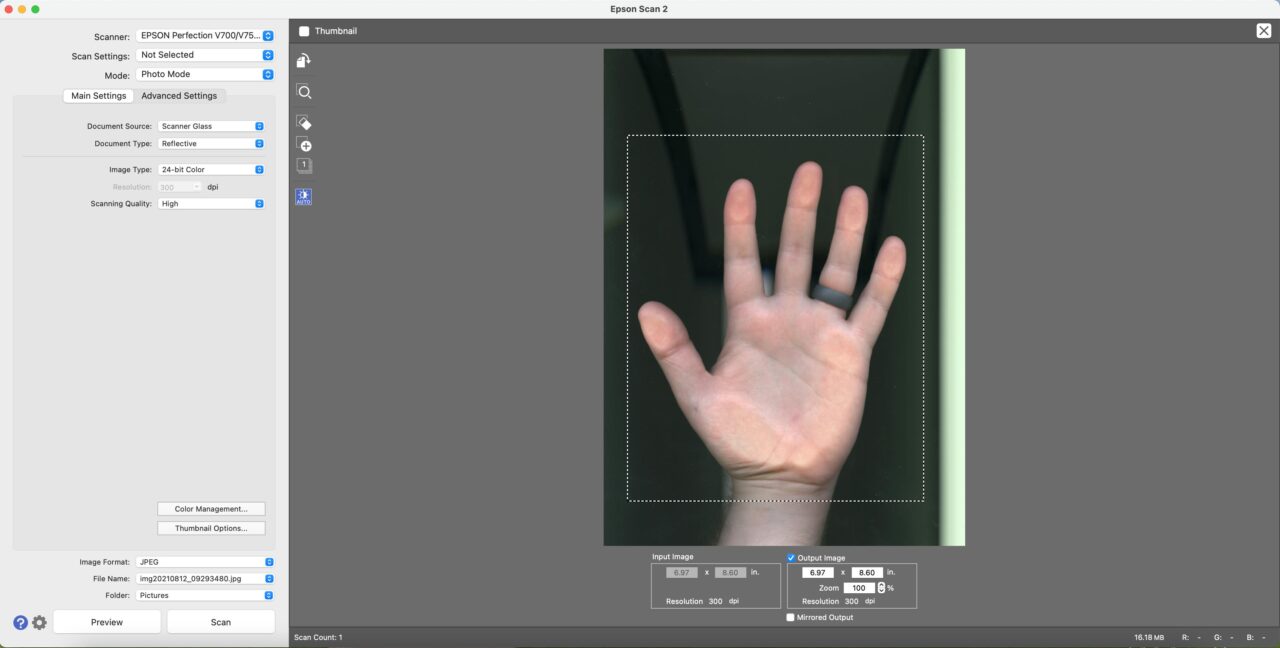
scanning software interface with preview image of a hand on the scanner
Cookie Settings