Notice: Function _load_textdomain_just_in_time was called incorrectly. Translation loading for the custom-facebook-feed domain was triggered too early. This is usually an indicator for some code in the plugin or theme running too early. Translations should be loaded at the init action or later. Please see Debugging in WordPress for more information. (This message was added in version 6.7.0.) in /export/NP/L/staging.web.faa.illinois.edu/secure/illinois-faa/web/wp/wp-includes/functions.php on line 6121

Notice: Function _load_textdomain_just_in_time was called incorrectly. Translation loading for the acfe domain was triggered too early. This is usually an indicator for some code in the plugin or theme running too early. Translations should be loaded at the init action or later. Please see Debugging in WordPress for more information. (This message was added in version 6.7.0.) in /export/NP/L/staging.web.faa.illinois.edu/secure/illinois-faa/web/wp/wp-includes/functions.php on line 6121
Tutorial - Releasing Prints from Papercut - School of Art & Design
Skip over sidebar nav to the content section

Tutorial – Releasing Prints from Papercut

Releasing Prints from Papercut

All jobs sent to any lab printers (inkjet or laser) must be released in Papercut before they will be sent to the printer.

  1. Open a web browser and navigate to go.illinois.edu/artPRINTRELEASE
  2. Login using your netID and Active Directory password (the same username and password used to log into the lab computer).
  3. On the left hand side of the Papercut page, click the Jobs Pending Release link.
  4. If your job has not yet shown up to be released, please be patient. Large files and many people printing in the lab at once can slow the time it takes for the job to arrive in Papercut. This page will automatically refresh itself every 60 seconds. Please be patient.
  5. When your job appears, check that everything looks correct (that it is going to the right printer, that the price looks appropriate, etc). If everything is correct, click the print link in the Action column.
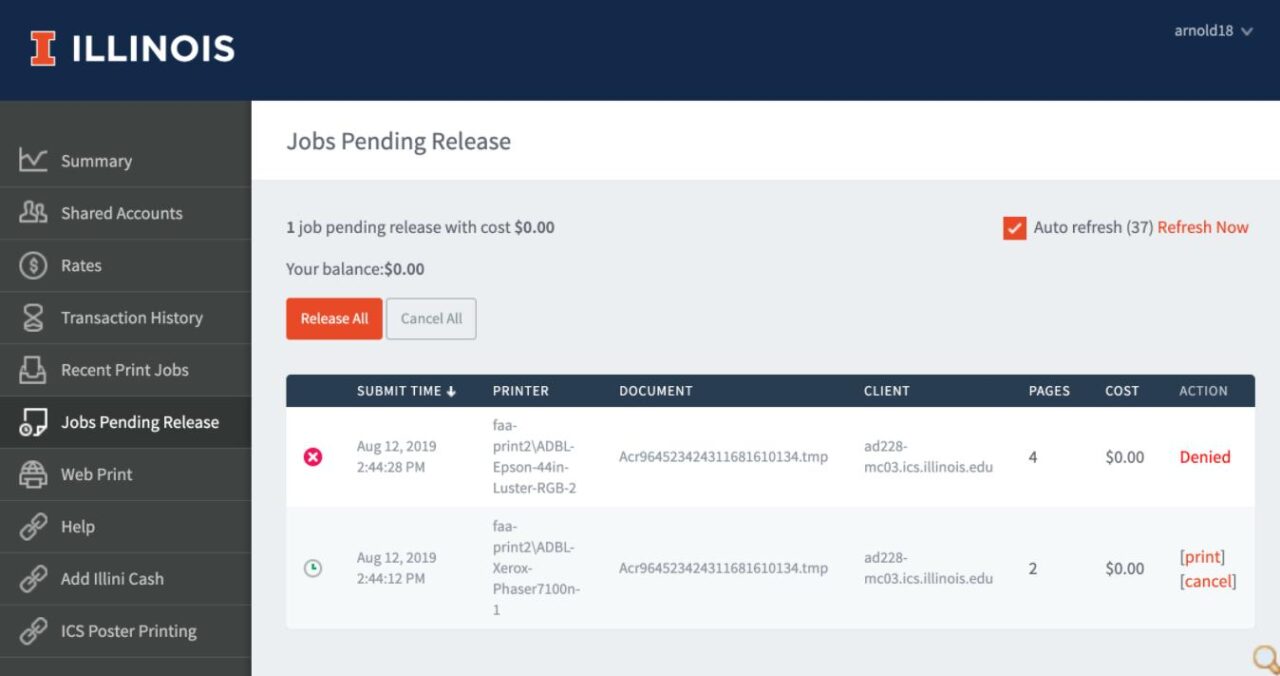
Jobs Pending Release Page

Fig 1 – Jobs Pending Release Page

Notes

Notes

  • If something looks incorrect, you can click the cancel link and you will not be charged for the print.
  • If your print has been denied for any reason, click the Recent Print Jobs link to see why the job was denied.
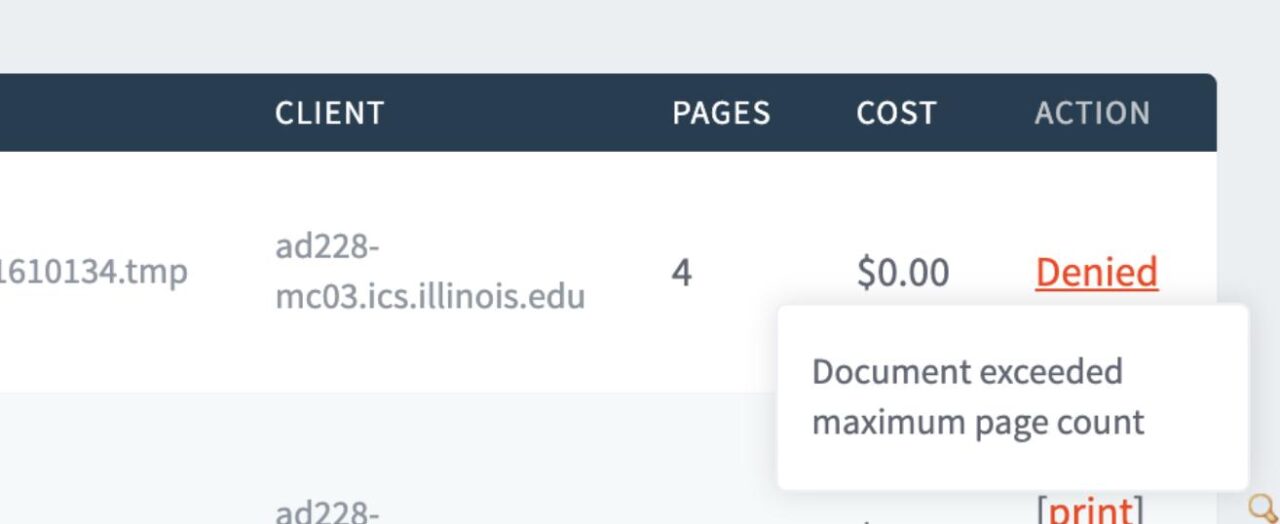
Denied Print Explanation

Fig 2 – Denied Print Explanation

Cookie Settings