Notice: Function _load_textdomain_just_in_time was called incorrectly. Translation loading for the custom-facebook-feed domain was triggered too early. This is usually an indicator for some code in the plugin or theme running too early. Translations should be loaded at the init action or later. Please see Debugging in WordPress for more information. (This message was added in version 6.7.0.) in /export/NP/L/staging.web.faa.illinois.edu/secure/illinois-faa/web/wp/wp-includes/functions.php on line 6121

Notice: Function _load_textdomain_just_in_time was called incorrectly. Translation loading for the acfe domain was triggered too early. This is usually an indicator for some code in the plugin or theme running too early. Translations should be loaded at the init action or later. Please see Debugging in WordPress for more information. (This message was added in version 6.7.0.) in /export/NP/L/staging.web.faa.illinois.edu/secure/illinois-faa/web/wp/wp-includes/functions.php on line 6121
Tutorial - Converting InDesign/Illustrator Files to PDFs for Printing - School of Art & Design
Skip over sidebar nav to the content section

Tutorial – Converting InDesign/Illustrator Files to PDFs for Printing

Export/Save As

Fig 1 – Export/Save As

Converting Adobe InDesign/Illustrator Files

Properly saving your InDesign/Illustrator files as PDFs for printing allows for any element with an embedded ICC profile to maintain its original profile. This will cut down on color profile issues if you have created your file with a mixture of CMYK and RGB elements.

1. In Adobe InDesign, navigate to File>Export. In Adobe Illustrator navigate to File>Save As.

2. Create a unique name for your file.

3. In the Format dropdown menu select Adobe PDF (Print) in InDesign or Adobe PDF (pdf) in Illustrator.

4. Click Save.
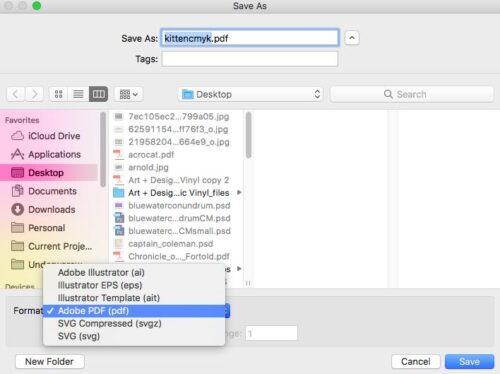
Export/Save As

Fig 1 – Export/Save As

Select High Quality Print and PDF/X-3:2003

Fig 2 – Select High Quality Print and PDF/X-3:2003

High Quality Print

5. In the Export (Save) Adobe PDF menu, select [High Quality Print] from the Adobe PDF Preset dropdown menu.

6. Select PDF/x-3:2003 from the Standard dropdown menu.
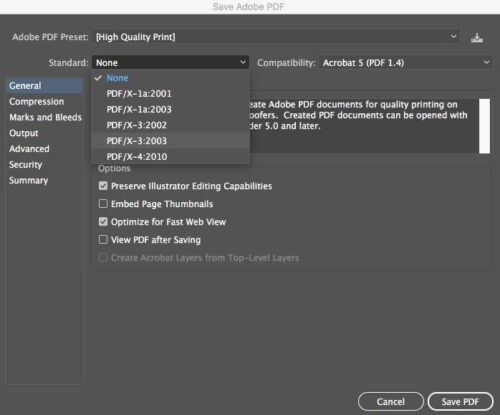
Select High Quality Print and PDF/X-3:2003

Fig 2 – Select High Quality Print and PDF/X-3:2003

Output Settings

Fig 3 – Output Settings

Output

7. Select the Output tab on the left.

8. Select No Color Conversion from the Color Conversion dropdown menu.

9. Select U.S. Web Coated (SWOP) V2 from the Ouput Intent Profile Name dropdown menu.

10. Click Export (Save) to save your PDF.
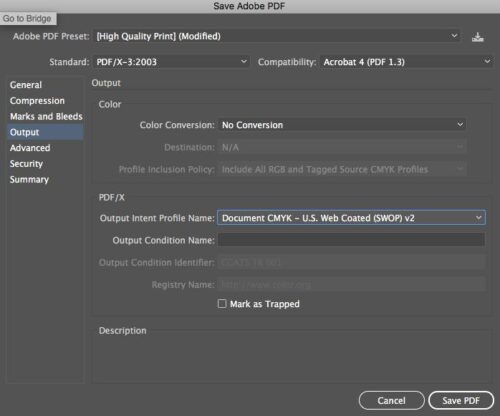
Output Settings

Fig 3 – Output Settings

Cookie Settings